1. Getting Started
Arbiter is a local-first AI assistant. Once you install a model, core chat runs entirely on your device with no account, no cloud dependency, and no ongoing inference costs. Network features like web search, model downloads, and local-network server connections are explicit opt-ins.
First Launch
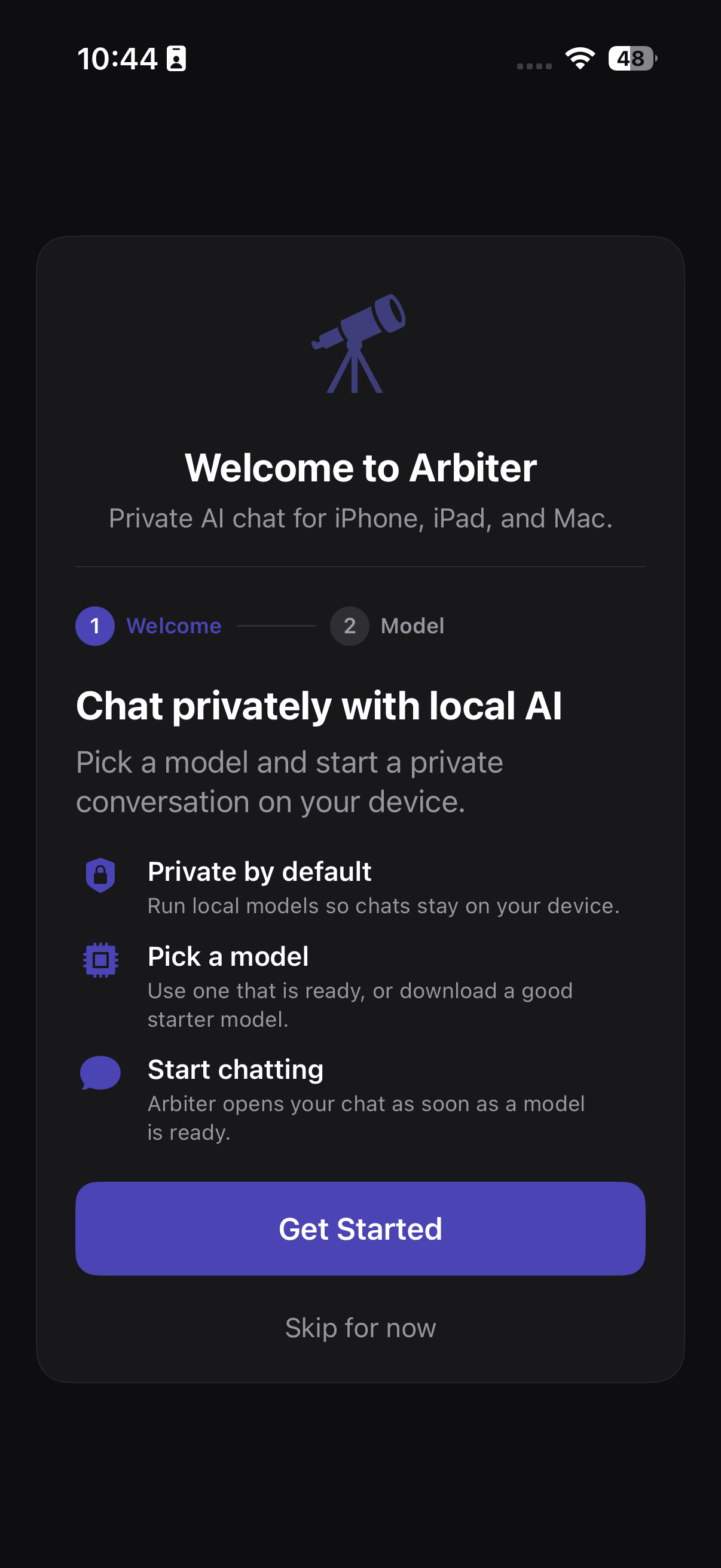
- Open Arbiter and walk through the onboarding screens.
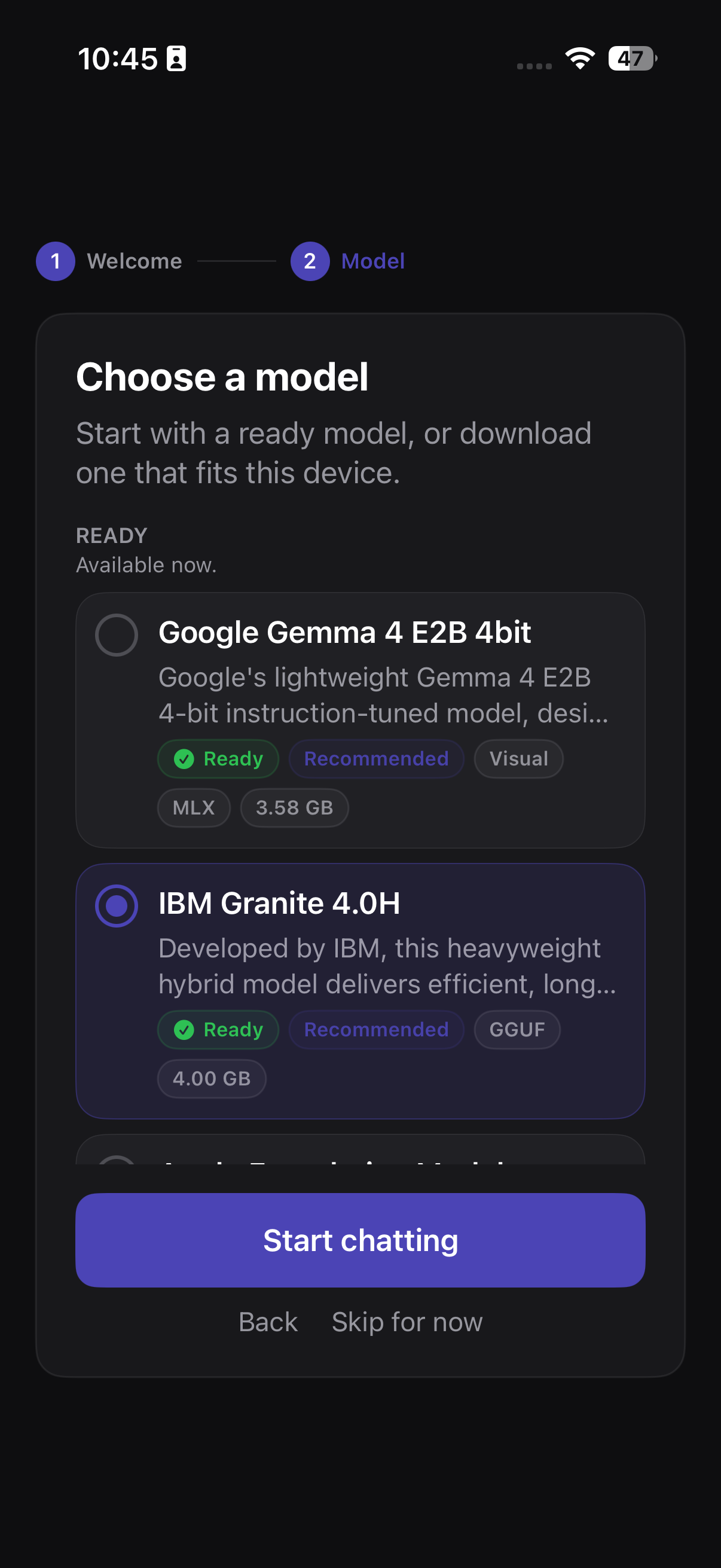
- Head to the Model Catalog and install a model. If you are not sure where to start, look for models tagged Recommended. These are sized to run well on most devices.
- Once the download finishes, the model loads automatically. Start a new chat and send a message.
Device Requirements
| Platform | Minimum | Recommended |
|---|---|---|
| iOS | iOS 16, A14 Bionic, 6 GB RAM | iPhone 13 Pro or later; more RAM for larger models |
| macOS | macOS 14, Apple Silicon (M1) | M1 Pro / M2 or later with 16+ GB RAM |
Models vary in size from under 1 GB to over 8 GB. Arbiter checks your device’s available memory before loading and warns you if a model is likely to exceed what your hardware can handle.
2. Understanding Model Formats
Arbiter supports four model runtime paths. Each has different tradeoffs around compatibility, performance, and setup.
GGUF
GGUF is a quantized model format popularized by the llama.cpp ecosystem. GGUF models are single-file downloads that run on both iOS and macOS through Arbiter’s built-in llama.cpp engine.
- Compatibility: Works on both iPhone and Mac.
- Performance: Efficient memory usage through quantization (most catalog entries are Q4 or Q8). Good balance of speed and quality on devices with limited RAM.
- Best for: Compact models on iPhone, general chat, coding, and reasoning tasks.
MLX
MLX is Apple’s machine learning framework for Apple Silicon. MLX models are stored as a set of config, tokenizer, and weight files and run through mlx-swift. They also work on both iOS and macOS.
- Compatibility: Works on both iPhone and Mac. Requires Apple Silicon.
- Performance: Takes advantage of the unified memory architecture on Apple Silicon. Larger MLX models that would not fit comfortably on an iPhone can run well on a Mac with more RAM.
- Vision models: All vision-capable models in Arbiter’s catalog use the MLX format through the MLXVLM runtime.
- Server support: The macOS model server feature serves installed MLX models.
- Best for: Larger models on Mac, vision tasks, and serving models to other devices.
Apple Foundation Model
Apple’s on-device Foundation Model is available on devices running iOS 26 or macOS 26 with Apple Intelligence enabled. This is a system-level model provided by Apple, so no download or storage is required.
- Compatibility: Requires Apple Intelligence eligibility and iOS 26 / macOS 26.
- Performance: Runs natively through Apple’s FoundationModels framework. Zero disk usage.
- Best for: Quick responses without downloading a model, or as a lightweight default alongside open-source models.
Remote OpenAI-Compatible Servers
Arbiter can also use models served by another device on your local network. This includes Arbiter for macOS, LM Studio, Ollama-style servers, and other OpenAI-compatible endpoints. Remote models appear in the picker as remote:model-id.
- Compatibility: Works on iOS and macOS when the server exposes OpenAI-style model and chat endpoints.
- Performance:Lets an iPhone use larger models running on a nearby Mac or PC while keeping prompts inside the user’s own network.
- Best for: Larger local-network models, desktop-hosted MLX models, and development workflows that expect an OpenAI-compatible API.
3. Model Catalog & Downloads
Arbiter ships with a curated catalog of 44 models spanning multiple families: Gemma, Llama, DeepSeek, Qwen, Mistral, Phi, Granite, and others. The catalog includes 24 GGUF models, 20 MLX models, 9 vision-capable models, and 10 reasoning models.
Browsing and Filtering
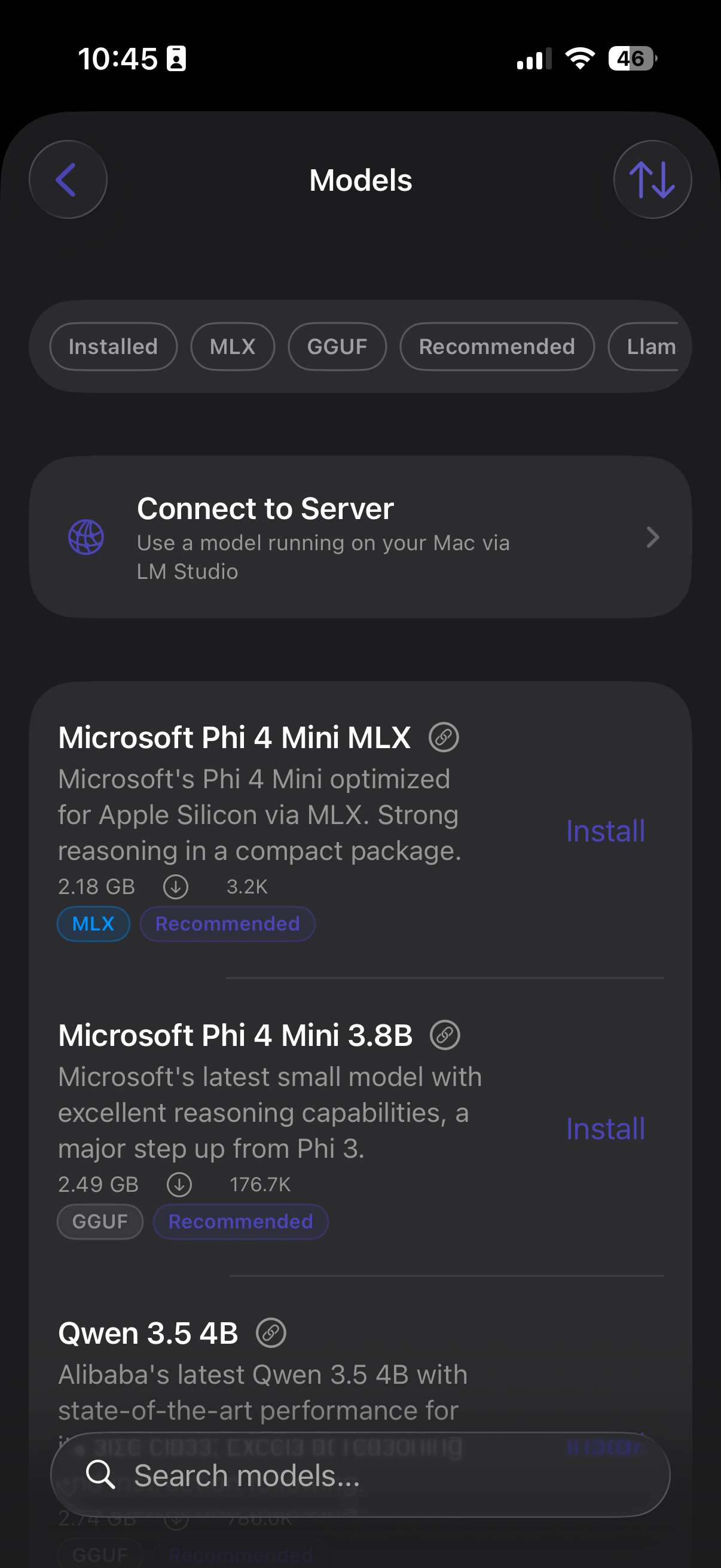
The model browser supports search, filtering, and sorting:
- Filters: Installed, MLX, GGUF, Recommended, Vision, Reasoning, and individual model families.
- Sorting: Recommended fit (default), installed first, file size, alphabetical, and popularity.
Downloading a Model
- Tap a model in the catalog to see its details, including size, format, capabilities, and a link to its Hugging Face page.
- Tap Download. Progress is tracked in the UI. Large models (4 to 8 GB) may take several minutes depending on your connection.
- Once downloaded, the model is stored locally in the app’s sandbox. GGUF models download as a single file. MLX models download config, tokenizer, and weight shards from Hugging Face.
Memory Fit Checks
Arbiter checks your device’s available RAM against the model’s requirements. If a model is likely to exceed your device’s memory, you will see a warning before downloading. This is especially relevant on iPhones with 6 GB RAM where larger models may crash during inference.
Recommendations are device-aware. Arbiter considers minimum and maximum memory guidance from the catalog, avoids tight-memory models during onboarding, and adjusts recommendations for devices such as 8 GB iPhones that can run stronger models than the smallest phone-friendly defaults.
Deleting Models
Installed models can be deleted from the catalog screen to free up storage. Deleting a model removes all associated files from the app sandbox.
4. On-Device Inference
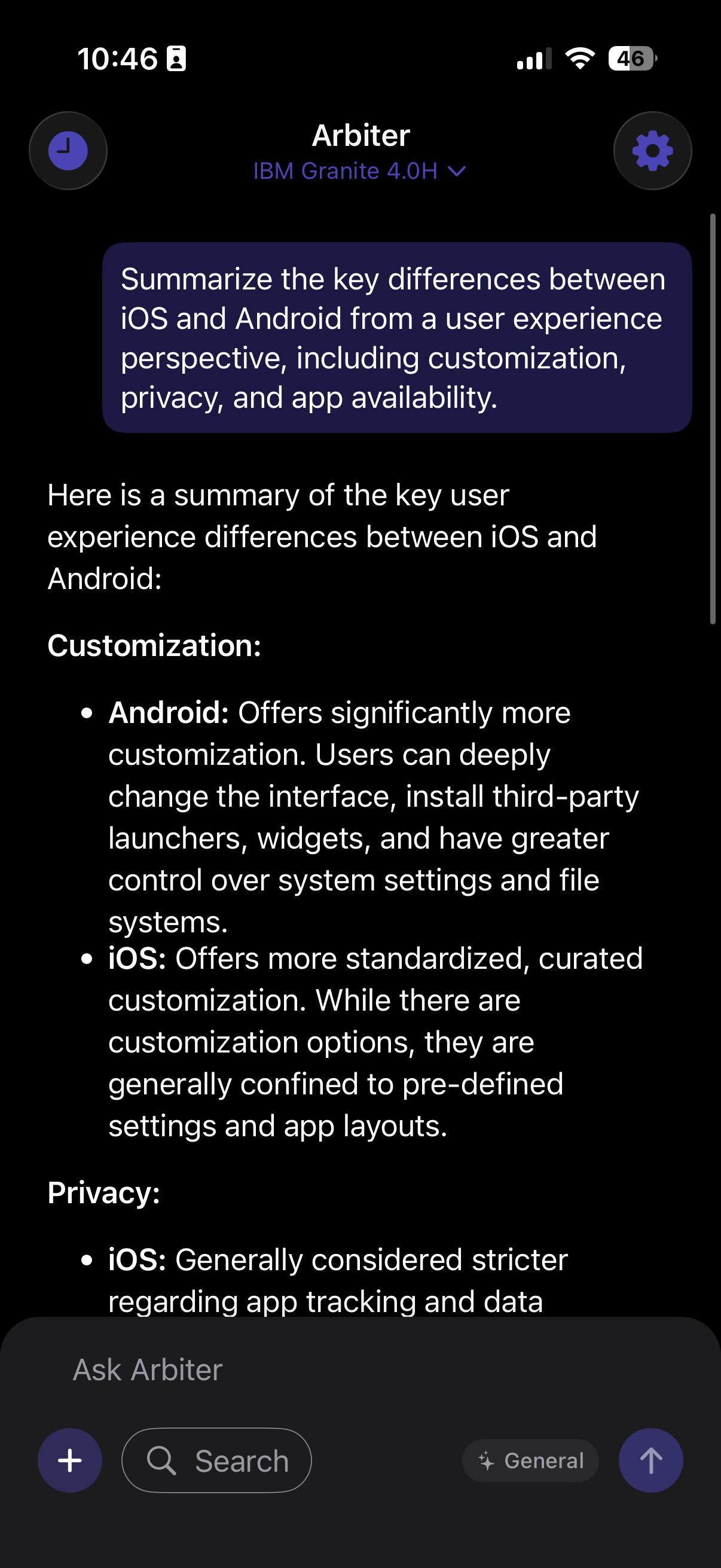
When you send a message with a locally installed model selected, inference happens entirely on your device. No network call is made, and your prompt never leaves the device.
How It Works
- GGUF models run through a local llama.cpp engine compiled for Apple platforms.
- MLX models run through
mlx-swiftandmlx-swift-lm, using Apple Silicon’s unified GPU and Neural Engine. - Responses stream token-by-token into the chat UI. You can tap Stop at any time to halt generation.
Performance Factors
Token generation speed depends on your hardware, the model size, quantization level, and current thermal state. A few guidelines:
- Smaller quantized models (1 to 3 GB) run smoothly on most modern iPhones.
- Larger models (4 to 8 GB) perform best on Mac or high-RAM iPhones.
- Sustained generation on iPhone can trigger thermal throttling. Shorter conversations or smaller models help here.
Troubleshooting: Model Issues
- Model won’t load or crashes: The model may be too large for your device. Try a smaller model. Models tagged “Recommended” in the catalog are sized for most devices. Close background apps to free up memory, especially on iPhone. If a download was interrupted, the model file may be corrupt. Delete and re-download it from the catalog.
- Slow generation: Larger models generate slower, especially on iPhone. Switch to a smaller or more quantized variant. Extended generation can heat up the device and reduce speed. Very long conversations also increase processing time per token, so start a new chat if things slow down significantly.
5. Chat & Conversations
All chat sessions are stored locally in Core Data. Arbiter automatically titles new conversations from your first message and reopens your most recent session on launch.
Chat Features
- Streaming responses with stop-generation control.
- Retry the last assistant response to get a different answer.
- Edit a previous user message and regenerate from that point.
- Delete the most recent message pair.
- Markdown rendering for formatted output and code blocks with syntax highlighting.
- Rename, delete, and search chat sessions from the history sidebar.
Switching Models Mid-Conversation
You can switch the active model at any time. The new model picks up the existing conversation context. Keep in mind that different models have different context window sizes. Switching to a smaller model mid-conversation may trigger context management (see Context Management).
6. Files & Vision
File Uploads
Arbiter supports uploading PDF and plain text files for summarization and analysis. Files are copied into the app’s sandbox and processed locally.
- Maximum file size: 2 MB.
- PDF text is extracted via PDFKit. Plain text is read as UTF-8.
- For smaller local models, Arbiter can pre-summarize the file to reduce context usage. For MLX and remote models, file excerpts can be included directly.
- Previous file attachments can be represented by stored summaries in follow-up messages to conserve tokens.

Vision & Image Input
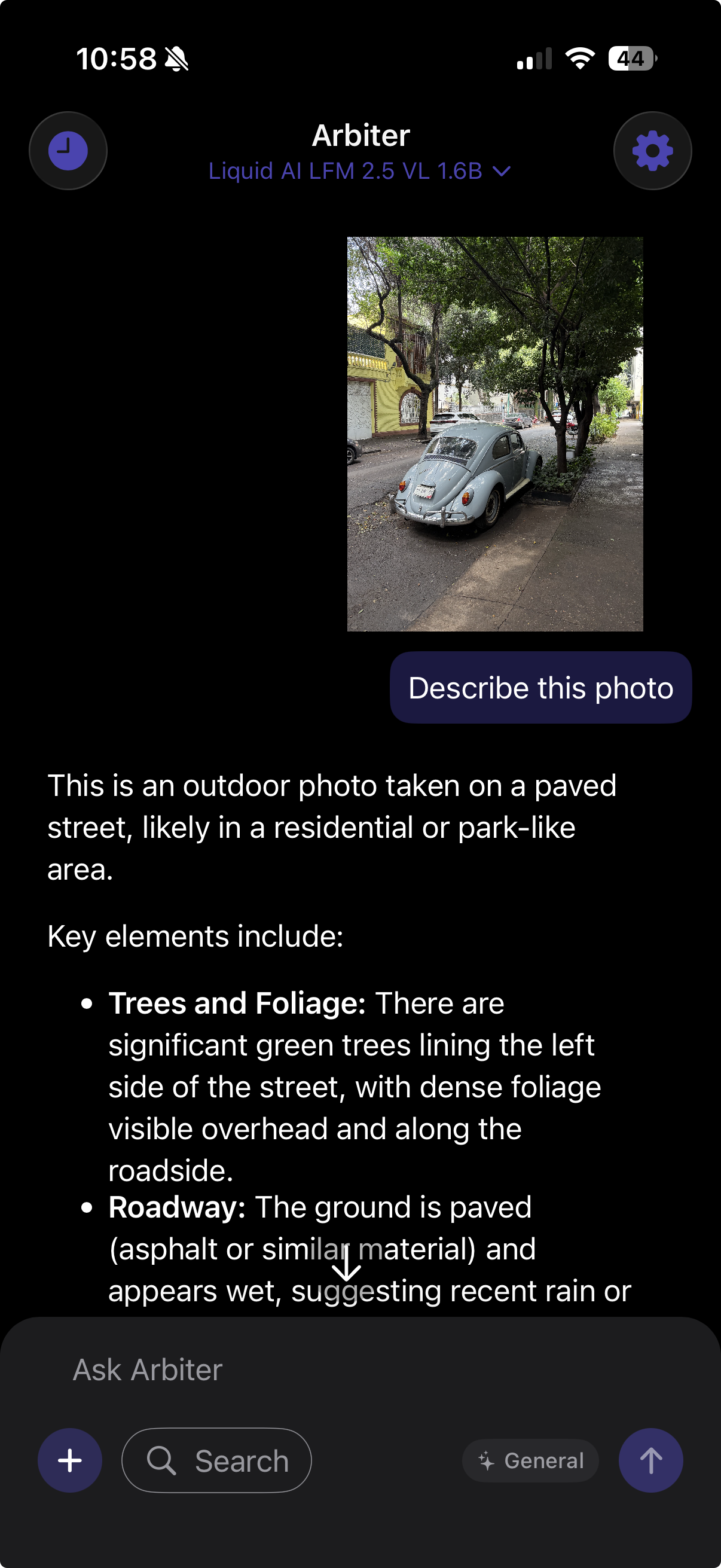
Vision-capable MLX models can process images alongside text prompts. Arbiter supports image input from the photo library and, on iOS, directly from the camera.
- Only MLX models tagged as vision-capable support image input. Text-only models are protected from receiving image data.
- Images are resized to 448×448 pixels and converted to JPEG before processing.
- Vision models in the catalog include Gemma 4, LFM 2.5 VL, Ministral, Qwen2 VL, Llama 3.2 Vision, and SmolVLM.
7. Web Search
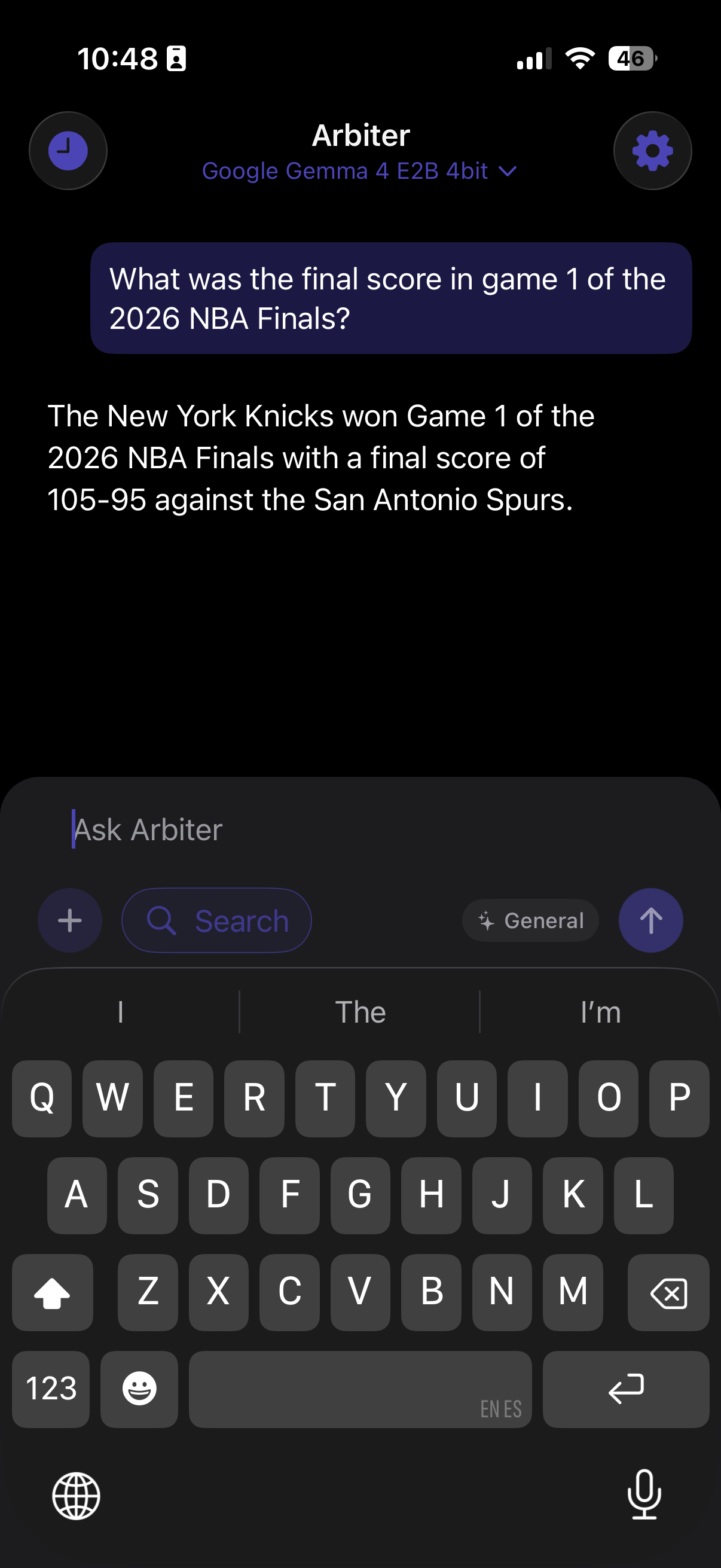
Web search is an optional feature that gives your local model access to current information from the internet. It is disabled by default and must be explicitly toggled on per-message.
How It Works
- Enable the search toggle in the chat input bar before sending your message.
- Arbiter sends your query to
search.askarbiter.aiand receives structured results. - Results are formatted into a compact, token-aware summary and injected into the model’s prompt alongside your question.
- The model generates a response grounded in both its training data and the live search results.
Privacy Considerations
When search is enabled, your search query is sent to Arbiter’s search endpoint. We do not log or store queries beyond what is needed to return results. Your full conversation history is not transmitted. Only the specific search query is sent.
When to Use Search
- Current events, news, or recent information.
- Facts that may have changed since the model was trained.
- Product prices, release dates, weather, sports scores.
For topics covered well by the model’s training data (general knowledge, coding, math), search is usually unnecessary and adds latency.
Troubleshooting: Web Search
- Search toggle: Search must be explicitly toggled on in the chat input bar for each message.
- Internet required: Search needs an active internet connection.
- Rate limits: If you see rate-limit errors, wait a moment and try again.
8. Importing & Exporting Chats
Arbiter supports JSON-based chat export and import for backups, migration between devices, or archival.
Exporting
- Open the chat you want to export.
- Use the export option to generate a JSON file containing the full message history, metadata, attachments, and summaries.
- Save or share the file through the system share sheet.
Importing
- Open Arbiter and use the import option from the chat history screen.
- Select a previously exported JSON file. Arbiter creates a new chat session from the imported data.
9. Connecting to Local Servers
Arbiter can connect to any OpenAI-compatible API server running on your local network. This lets you run larger models on a nearby computer and chat from your iPhone or Mac without sending prompts to a cloud provider.
Supported Servers
- Arbiter for macOS (see Running a Model Server)
- LM Studio with the local server enabled in settings
- Ollama, which runs an OpenAI-compatible endpoint by default
- Any OpenAI-compatible server that exposes
/v1/modelsand/v1/chat/completions
Setup
- Make sure the server is running and accessible on the same Wi-Fi network as your device.
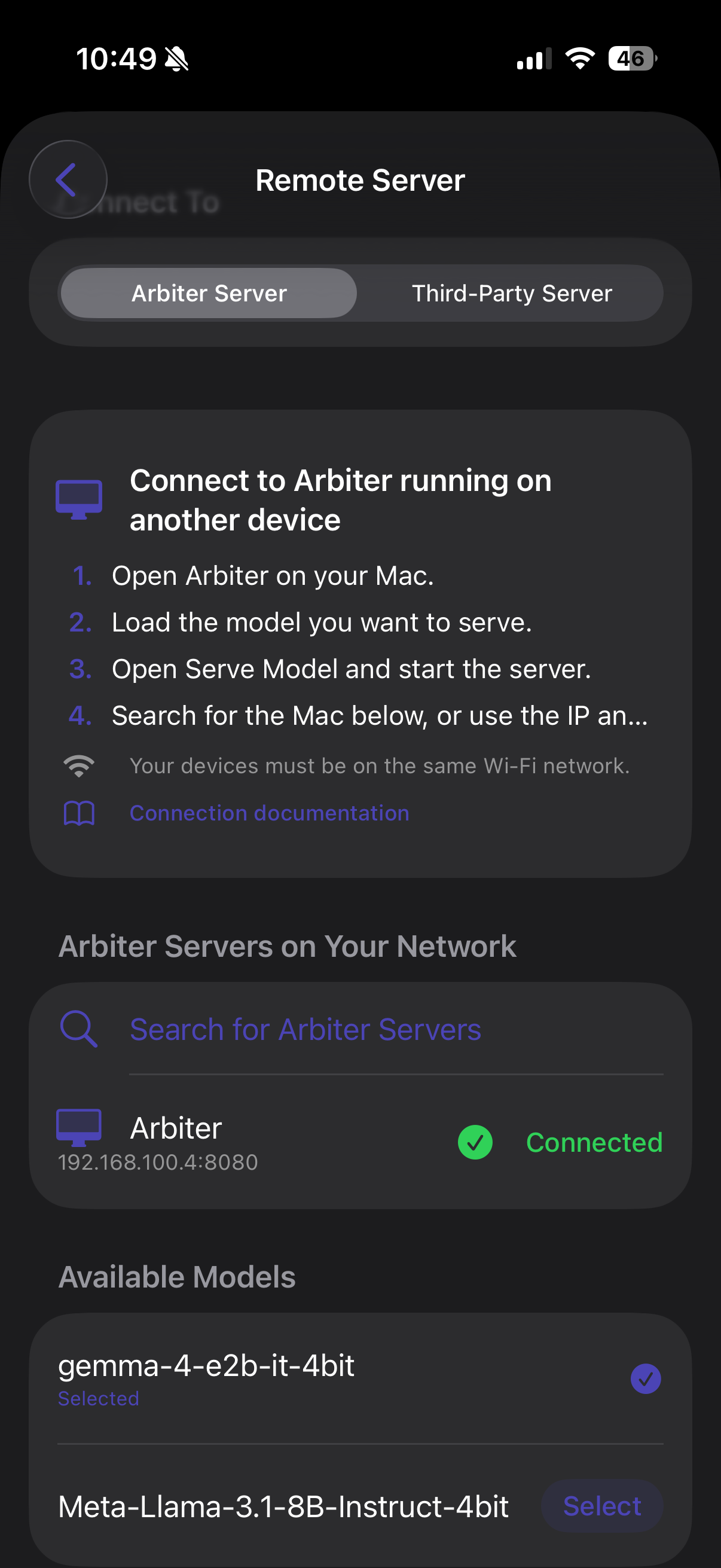
- In Arbiter, go to Settings → Remote Server.
- Choose Arbiter Server for another Arbiter app on your network, or Third-Party Server for LM Studio, Ollama, or another OpenAI-compatible server.
- Enter the server’s host (IP address or hostname) and port. Arbiter Server defaults to port
8080; third-party OpenAI-compatible servers default to1234. - Tap Test Connection. Arbiter queries
/v1/modelsto discover available models and, when supported,/v1/active_modelto identify the server’s current model. - Select a remote model. It appears in the model picker as
remote:model-id.
Bonjour Discovery (iOS → Mac)
When Arbiter for macOS is serving a model, it advertises itself on the local network via Bonjour (_arbiter._tcp) with host and port metadata. Arbiter for iOS can automatically discover nearby Mac servers without manual IP entry. Discovery runs in a timed search window and falls back to manual host and port entry when local network permission or Wi-Fi configuration blocks discovery.
Remote Model Switching
Arbiter-compatible servers can expose /v1/active_model. When available, Arbiter can show the active model and request a model switch before chatting. Third-party servers that only support /v1/models and /v1/chat/completions still work for normal remote chat.
Privacy
Local-network connections stay on your network. Prompts are sent directly between devices and do not pass through Arbiter’s servers or any external endpoint. The privacy of this path depends on your own network configuration.
Troubleshooting: Server Connections
- Local Network permission: On iOS, Arbiter requires the Local Network permission to discover and connect to servers on your Wi-Fi. Go to Settings → Privacy & Security → Local Network and make sure Arbiter is enabled. Without this permission, Bonjour discovery will not work, and manual connections may fail.
- Same network: Both devices must be on the same Wi-Fi network.
- Server running: Confirm the server (LM Studio, Ollama, Arbiter macOS) is actively running and not paused.
- Correct host and port: Double-check the IP address and port number. Use Arbiter’s Test Connection to diagnose the issue. It reports specific errors for timeouts, refused connections, empty model lists, and HTTP failures.
- Diagnostics: Remote connection screens include expandable diagnostics and copyable debug logs. These are useful when comparing Bonjour discovery, manual host/port entry, and the server’s own connection details.
- Firewall: Make sure your Mac’s firewall allows incoming connections on the configured port.
10. Running a Model Server (macOS)
Arbiter for macOS can expose an installed MLX model as an OpenAI-compatible local API server. This turns your Mac into a private inference endpoint for your iPhone, other apps, IDE plugins, or any client that speaks the OpenAI chat completions format.
Starting the Server
- Open Arbiter for macOS and install at least one MLX model.
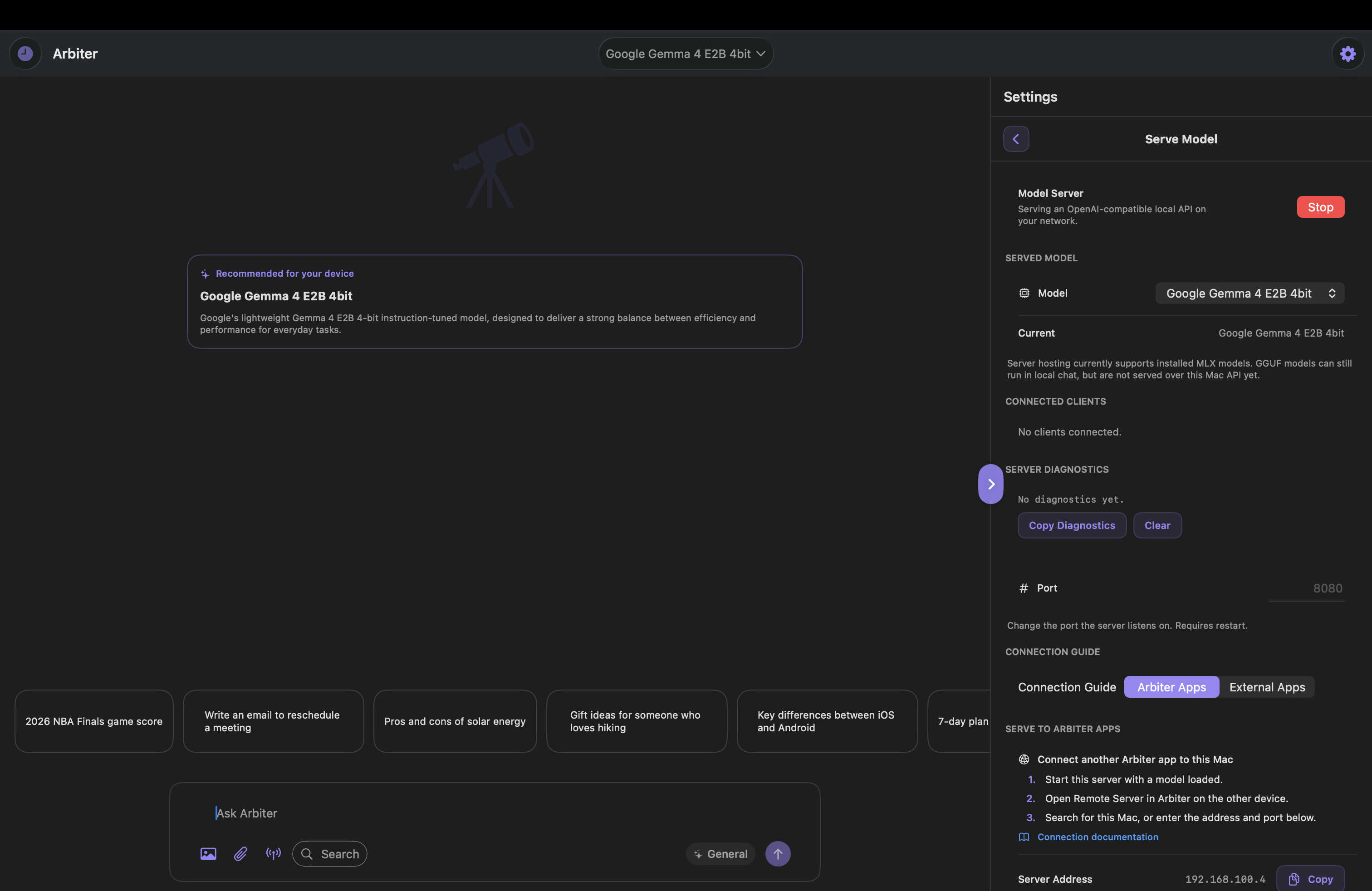
- Navigate to the Serve Model section.
- Choose the installed MLX model you want the server to expose. Arbiter can load the selected model before serving.
- Tap Start Server. The default port is 8080, but you can configure it.
- Arbiter displays both the localhost URL (for the Mac itself) and the local network URL (for other devices).
API Endpoints
| Endpoint | Method | Description |
|---|---|---|
/v1/models | GET | Lists installed MLX models and identifies the currently loaded model. |
/v1/active_model | GET | Returns the server’s active loaded model. |
/v1/active_model | POST | Requests a model switch to another installed MLX model. |
/v1/chat/completions | POST | Sends a chat completion request. Supports server-sent event streaming. |
Connecting from iPhone
With the macOS server running, open Arbiter on your iPhone. If both devices are on the same Wi-Fi network, Arbiter for iOS can discover the Mac automatically via Bonjour. You can also enter the Mac’s IP and port manually under Settings → Remote Server.
Using with Other Clients
The server includes CORS headers and follows the OpenAI chat completions format, so you can point other tools at it. The Serve Model screen also shows copyable connection values, external API details, connected clients, and diagnostics.
# List available models
curl http://192.168.1.x:8080/v1/models

# Send a chat completion request
curl http://192.168.1.x:8080/v1/chat/completions \
  -H "Content-Type: application/json" \
  -d '{
    "model": "your-model-id",
    "messages": [{"role": "user", "content": "Hello"}],
    "stream": true
  }'
Limitations
- The server serves installed MLX models. GGUF models can still run in local chat, but they cannot be served over the macOS API yet.
- One generation at a time. If a request is in progress, additional requests wait until the current one finishes.
- No built-in authentication. The server is accessible to any device on your local network.
11. Apple Foundation Models
Starting with iOS 26 and macOS 26, Arbiter integrates Apple’s on-device Foundation Models through the FoundationModels framework. These are system-level models provided by Apple Intelligence, with no download required.
Requirements
- iOS 26 or macOS 26.
- Apple Intelligence must be available and enabled on your device.
- Device must meet Apple’s eligibility requirements.
Usage
When available, Apple Foundation Model appears in the model picker alongside installed GGUF and MLX models. Select it like any other model. Responses stream into the same chat interface and integrate with Arbiter’s personalization and role system.
Troubleshooting: Apple Foundation Model
- Requires iOS 26 or macOS 26. Earlier OS versions do not support the FoundationModels framework.
- Apple Intelligence must be enabled in Settings → Apple Intelligence & Siri.
- Not all devices support Apple Intelligence. Check Apple’s compatibility list for your hardware.
- If the model is not ready or the device is ineligible, Arbiter shows a clear error and suggests switching to an installed local model.
12. Roles & Personalization
Assistant Roles
Arbiter includes 10 built-in assistant roles, each with a role-specific system prompt tuned for different tasks:
- General Assistant
- Language Translator
- Meal Planner
- Fitness Coach
- Mindfulness Guide
- Study Buddy
- Career Advisor
- Travel Planner
- Coding Helper
- Shopping Assistant
The Language Translator role includes a selectable target language (Spanish, French, Chinese, Japanese, Hindi). Starter prompts in the chat input update based on the selected role.
Personalization Settings
You can adjust how the assistant responds without writing a custom system prompt:
| Setting | Options |
|---|---|
| Nickname | Custom name the assistant uses for you |
| Custom Instructions | Free-text instructions appended to the system prompt |
| Warmth | Direct, Balanced, Warm |
| Enthusiasm | Calm, Balanced, Energetic |
| Emoji Preference | None, Occasional, Frequent |
| Response Style | Concise, Balanced, Detailed |
Only non-default settings are included in the prompt to save tokens on smaller models.
13. Siri & Shortcuts
Arbiter registers an App Intent called Ask Arbiter that you can invoke through Siri or the Shortcuts app.
Using with Siri
Say “Hey Siri, Ask Arbiter” followed by your question. Siri routes the query to Arbiter, which generates a short spoken response using the currently selected model. The app does not need to be open.
Using with Shortcuts
Add the Ask Arbiter action to any Shortcut workflow. The action accepts a text input and returns the model’s response as text, which you can pipe into other Shortcut actions.
14. Context Management
Different models have different context window sizes, and devices have different memory ceilings. Arbiter manages both: it fits each conversation into the model’s token window and, for on-device MLX models, keeps prompts below the memory level that could cause iOS to terminate the app.
Context Stages
- Full: The conversation is below the soft threshold, so Arbiter sends the full history unchanged.
- Approaching: The prompt is above the soft threshold but still inside the safe input budget. Arbiter can warn you and, when useful, prepare a summary in the background.
- Hybrid: The full conversation no longer fits safely. Arbiter drops older turns, keeps recent turns in full, optionally prepends a saved summary, and always preserves the current user message.
- Exceeded: The required prompt still cannot fit after trimming. Arbiter shows an error instead of sending a request that is likely to fail or crash.
Arbiter reserves output space before deciding how much input can be sent. The effective input budget is maxContextTokens - reservedResponseTokens, and the soft threshold is that safe budget multiplied by a model-specific fraction. This leaves room for the reply and starts trimming before the hard limit.
Context Budgets by Runtime
| Model Type | Max Context | Response Reserve | Recent Turns Kept |
|---|---|---|---|
| GGUF | 2,048 tokens | 512 tokens | 6 |
| MLX | Read from config.json, then capped by device memory | 1,024 tokens, clamped to fit the model | 8 |
| Apple Foundation | 4,096 tokens | 1,024 tokens | 8 |
| Remote server | 32,768 tokens | 4,096 tokens | 50 |
| Unknown fallback | 4,096 tokens | 1,024 tokens | 8 |
MLX Memory Caps
Some MLX models advertise very large trained context lengths, such as 131,072 tokens, but an iPhone cannot always hold the required KV cache and temporary prefill tensors in memory. Arbiter therefore converts available device RAM into a safer token cap and uses the smaller of the model’s trained length and the memory-derived cap.
The cap accounts for model weights, a 500 MB activation reserve, KV-cache bytes per token from the model geometry, and extra prefill memory for vision-loaded MLX models. This is why a vision model may enter hybrid mode much earlier than its advertised context length suggests: the memory ceiling can be stricter than the token window.
Token Estimation
Arbiter estimates tokens without running a tokenizer on every prompt. The estimate is script-aware: Latin text is counted at roughly 3.5 characters per token, CJK and similar dense scripts closer to one token per character, and expansive scripts such as Hindi or Thai more conservatively. This prevents translation and multilingual chats from being under-counted by several times.
Summaries and Files
When a conversation enters hybrid mode, Arbiter can summarize older messages after the active response finishes and store that summary with the chat. Future turns can then include a compact summary plus recent messages instead of repeatedly sending the entire history. File attachments can also be represented by stored summaries in follow-up turns to reduce context pressure.
Reasoning and Search
Reasoning-capable models receive a larger output allowance when thinking mode is enabled, because the thinking trace uses reply tokens before the final answer. For search-grounded prompts, Arbiter disables thinking so smaller models do not spend their budget repeatedly reasoning over injected search snippets.
15. iOS vs. macOS Differences
Both apps share the same core: local model execution, chat, file uploads, web search, personalization, and roles. The main differences are driven by platform capabilities and form factor.
| Feature | iOS | macOS |
|---|---|---|
| GGUF models | Supported | Supported |
| MLX models | Supported | Supported |
| Apple Foundation Model | iOS 26+ | macOS 26+ |
| Camera input | Yes | No (photo library only) |
| Haptic feedback | Yes (configurable) | No |
| Serve model as API | No | Yes (MLX models) |
| Bonjour discovery | Discovers Mac servers | Advertises as server |
| Connect to remote servers | Yes | Yes |
| Practical model size | 1 to 4 GB typical | 4 to 8+ GB with more RAM |
| Siri / Shortcuts | Yes | Yes |